
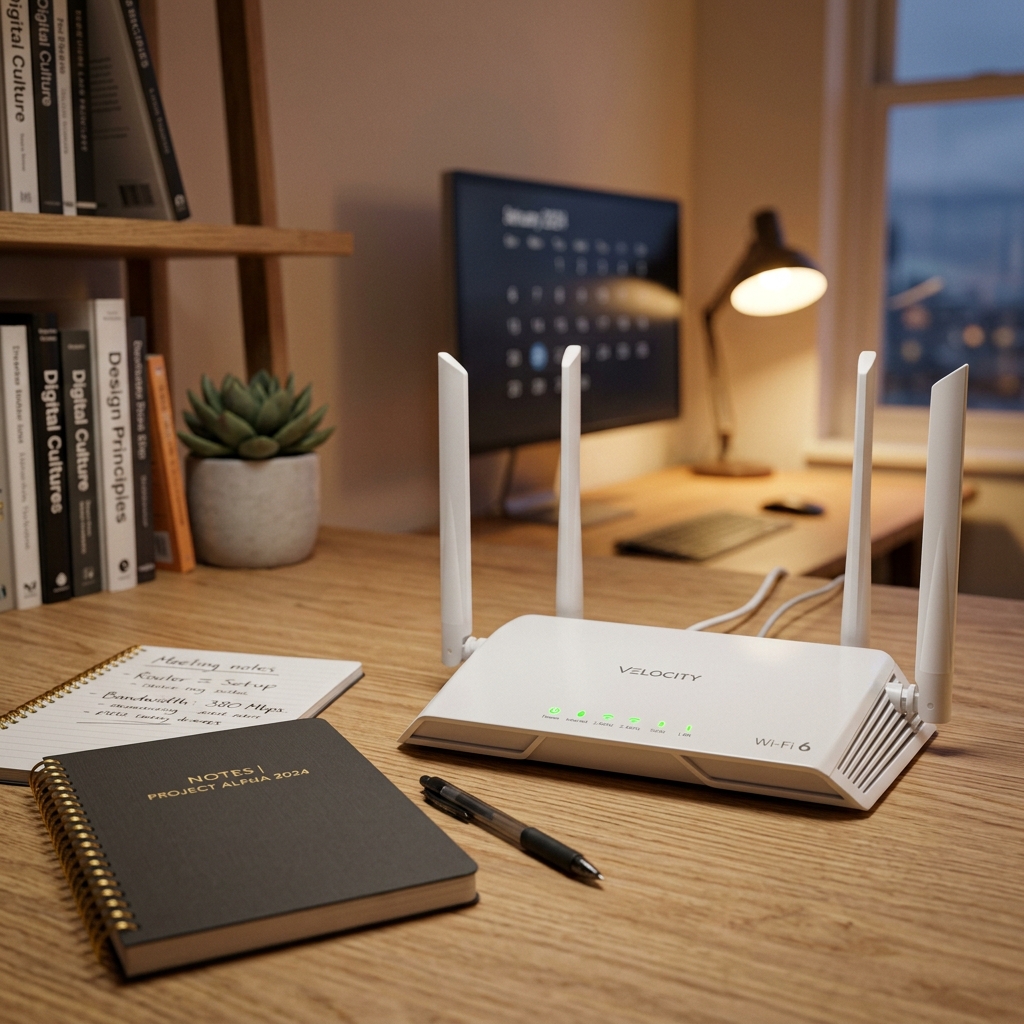
How to Optimize Your Home Wi-Fi Network for Remote Work
Remote work, online classes, and video meetings are now standard. A choppy connection or slow speeds during an important Zoom call is incredibly frustrating. Often, the issue isn't your internet plan's bandwidth, but rather how your home Wi-Fi network is configured. Here are practical tips to optimize your wireless network.
1. Place Your Router Centrally
Wi-Fi signals travel outward in all directions. Stashing your router in a corner, inside a drawer, or behind a TV significantly weakens the signal. Place your router centrally in your home, preferably elevated on a shelf, to maximize coverage.
2. Separate the 2.4GHz and 5.0GHz Bands
Modern dual-band routers offer two networks:
- 2.4 GHz: Slower speeds but travels further and passes through walls easily.
- 5.0 GHz: Extremely fast speeds but has a shorter range and struggles with walls.
3. Choose the Right Wi-Fi Channel
If you live in an apartment complex, your neighbors' routers are likely clogging the same wireless frequencies, causing interference. Log into your router dashboard and change your 2.4GHz channel to a non-overlapping channel (1, 6, or 11) or set your 5GHz channel width to 80MHz to avoid crowding.
4. Connect via Ethernet for Crucial Tasks
Wireless signals are always prone to interference from walls, metal, and microwave ovens. For absolute stability during critical work presentations, connect your laptop directly to the router using a Cat6 ethernet cable. This eliminates packet loss and latency.
5. Utilize Access Points Instead of Cheap Repeaters
Cheap Wi-Fi repeaters often slash your internet speed in half because they have to receive and re-transmit signals simultaneously. If you have dead zones in a multi-story house, the professional solution is to install structured Cat6 cables and mount dedicated Access Points (APs) or configure a mesh Wi-Fi system.
If you need assistance setting up high-performance routers, access points, mesh networks, or cabling in your home or office, contact the network engineers at SRP Enterprise.